> For the complete documentation index, see [llms.txt](https://docs.noqo.ai/llms.txt). Markdown versions of documentation pages are available by appending `.md` to page URLs; this page is available as [Markdown](https://docs.noqo.ai/channels/messengers/whatsapp.md). Agents can also search and read this documentation through its [MCP server](https://docs.noqo.ai/~gitbook/mcp).

# WhatsApp

WhatsApp is a free online messenger and one of the most popular mobile applications in the world.

## What Does It Allow?

This channel allows for the full automation of customer communication.

## Connection

1. To connect Noqo to WhatsApp you need to go to the **Channels** section inside the bot and enter the WhatsApp channel:

<figure><img src="https://1782981877-files.gitbook.io/~/files/v0/b/gitbook-x-prod.appspot.com/o/spaces%2FKvUDH16L29QcaH0CuUhn%2Fuploads%2F2DhURVgJPKch7E1Wg78i%2F11.png?alt=media&amp;token=7498f984-1672-4a3a-95ff-830cf651e447" alt=""><figcaption></figcaption></figure>

2. In the opening window, click on the **Connect** button:

<figure><img src="https://1782981877-files.gitbook.io/~/files/v0/b/gitbook-x-prod.appspot.com/o/spaces%2FKvUDH16L29QcaH0CuUhn%2Fuploads%2Fbgq5F2dI3B27knvYulDC%2Fimage.png?alt=media&amp;token=8222f02d-eb2b-4342-92c0-1f6a5e6369b6" alt=""><figcaption></figcaption></figure>

3. Then click the **Connect** button again:

<figure><img src="https://1782981877-files.gitbook.io/~/files/v0/b/gitbook-x-prod.appspot.com/o/spaces%2FKvUDH16L29QcaH0CuUhn%2Fuploads%2FLej3Q41GjtgwxPmg20vP%2Fimage.png?alt=media&amp;token=5ca1413e-7033-490e-a357-6d0d9bafd633" alt=""><figcaption></figcaption></figure>

{% hint style="info" %}
Please note that when you click on the "Connect" button, a commission of $0.23 per day will be immediately deducted from your account, so this amount must be in your account.

This payment will be deducted daily.
{% endhint %}

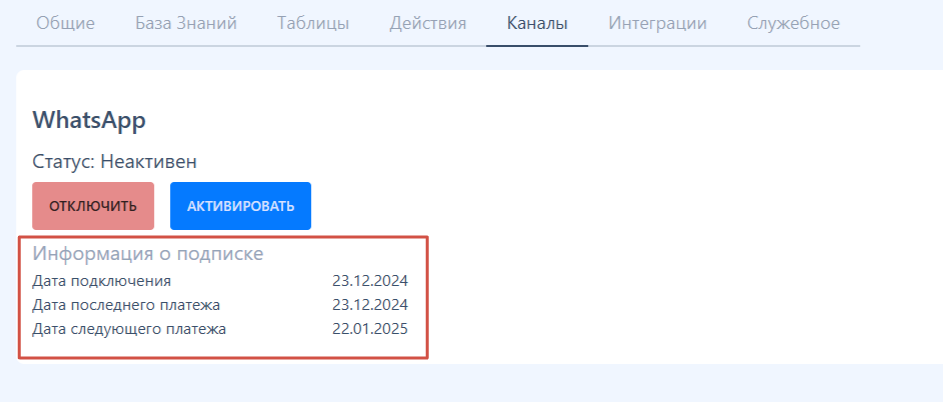
Here you can track the **date of the next payment:**

<figure><img src="https://content.gitbook.com/content/KvUDH16L29QcaH0CuUhn/blobs/fQitERV4N2D33YEpCVyM/image%20(92).png" alt=""><figcaption></figcaption></figure>

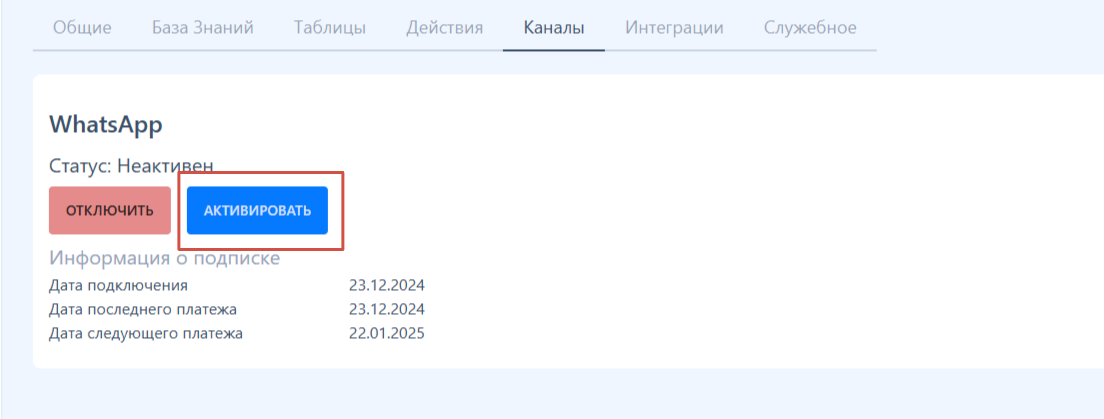
4. To activate the account, click the **Activate** button:

<figure><img src="https://content.gitbook.com/content/KvUDH16L29QcaH0CuUhn/blobs/ZNMivvDRdtOtuBVsEUrB/4.png" alt=""><figcaption></figcaption></figure>

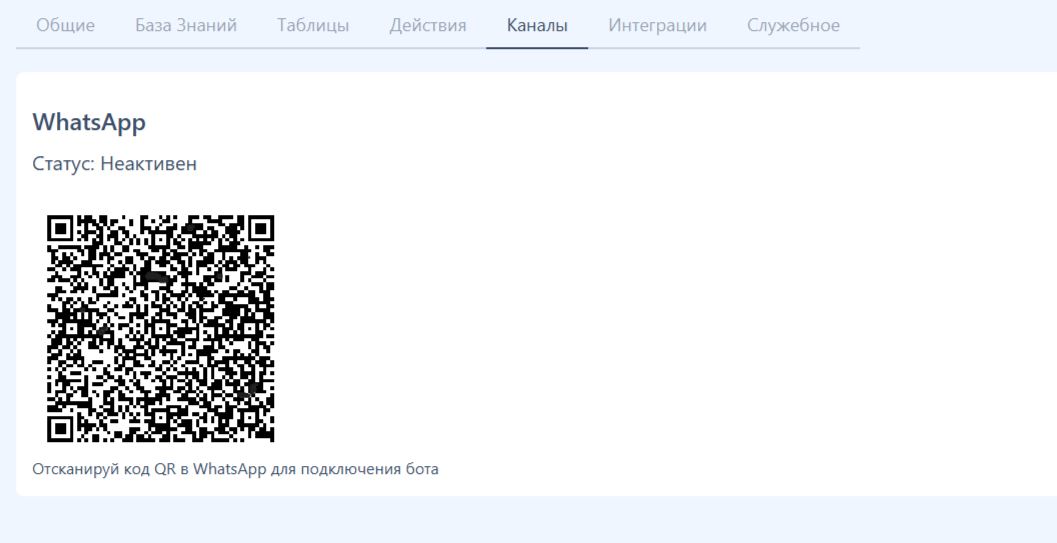
5. Next, scan the **QR code** with the **WhatsApp** application and follow the instructions on the phone screen:

<figure><img src="https://content.gitbook.com/content/KvUDH16L29QcaH0CuUhn/blobs/zhKmmMODn5IOX9hHeTh3/5.png" alt=""><figcaption></figcaption></figure>

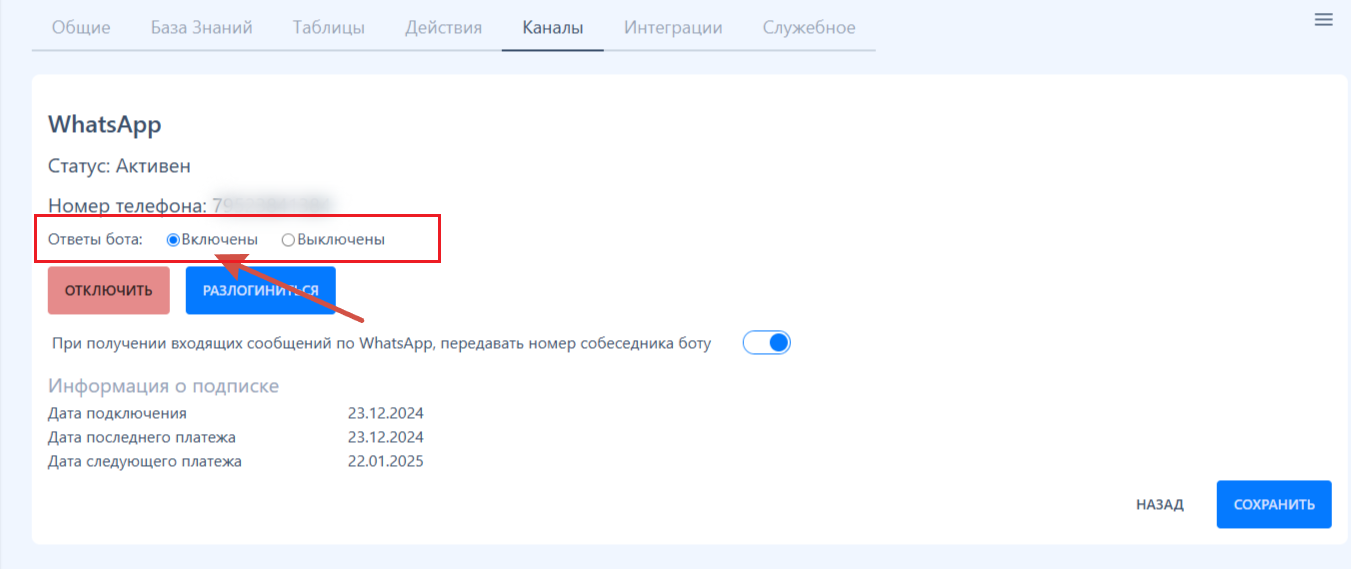
6. Check that bot responses are **enabled**:

<figure><img src="https://content.gitbook.com/content/KvUDH16L29QcaH0CuUhn/blobs/fzj6Tki8coNkDSdAcMNH/6%20(2)%20(1).png" alt=""><figcaption></figcaption></figure>

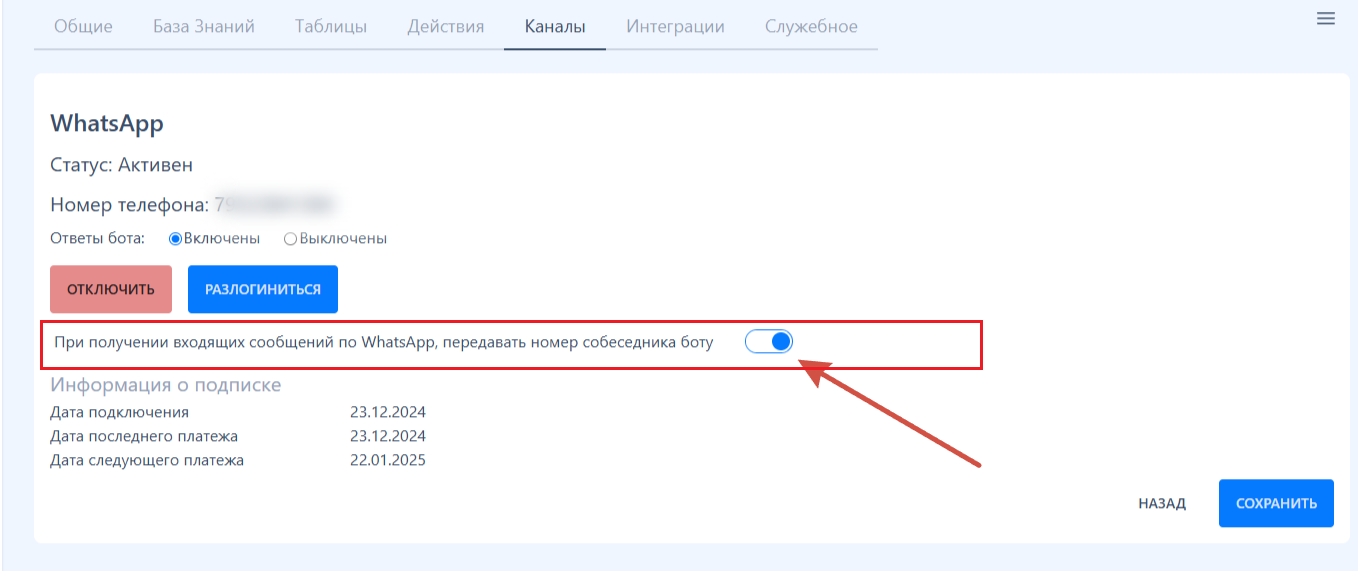
7. To enable the bot to automatically detect the interlocutor's phone number, allow the **transmission of the interlocutor's number to the bot:**

<figure><img src="https://content.gitbook.com/content/KvUDH16L29QcaH0CuUhn/blobs/YTiHdEPAld2dcxmG3MVS/7%20(2).png" alt=""><figcaption></figcaption></figure>

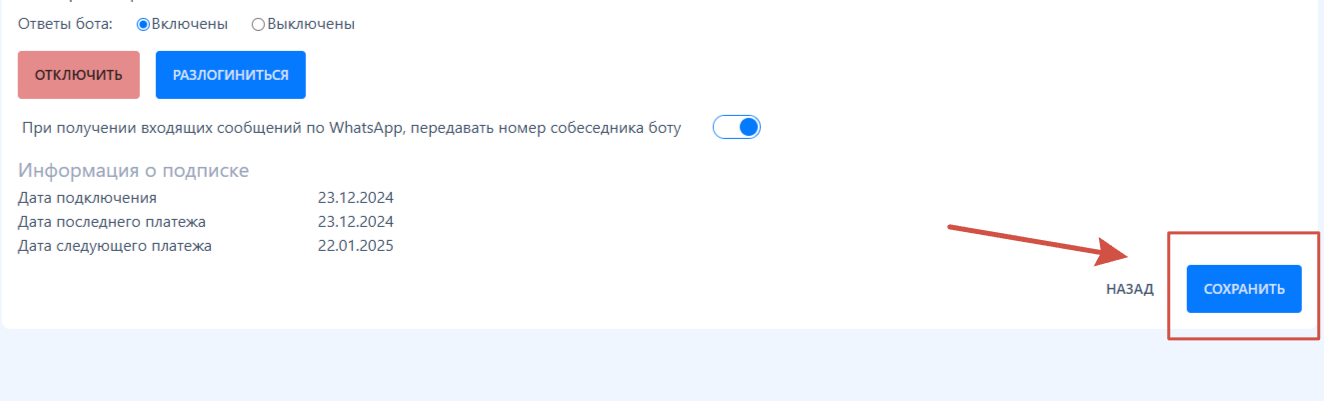
8. After selecting the desired bot settings, click the **Save** button:

<figure><img src="https://content.gitbook.com/content/KvUDH16L29QcaH0CuUhn/blobs/JiGvRS0eGHZsTwpUVyu9/8.png" alt=""><figcaption></figcaption></figure>

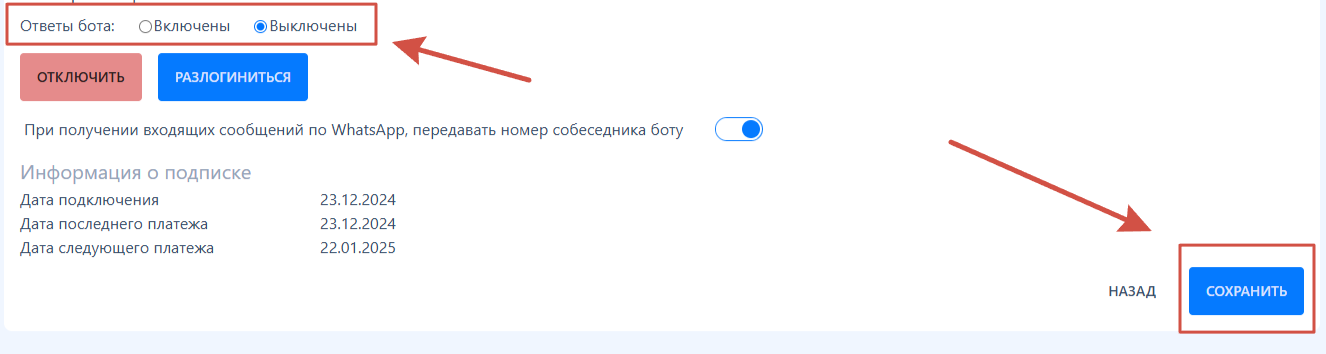
9. You can change the settings at any time or disable bot responses in this channel. Just turn off the bot responses and click the **Save** button:

<figure><img src="https://content.gitbook.com/content/KvUDH16L29QcaH0CuUhn/blobs/oa0fI880EAGkN8e4Yb5P/9.png" alt=""><figcaption></figcaption></figure>